

With over 70% of organizations actively piloting automation technologies, businesses are increasingly turning to Python to eliminate repetitive manual tasks in Microsoft Word document handling. Generating contracts, shipping labels, compliance reports, or bulk invoices at scale requires more than code that works on a local machine: it demands reliability, maintainability, and architecture that handles real production workloads. In this article, we share battle-tested techniques from enterprise implementations to supercharge your Python MS Word automation.
How to choose a Python library for Microsoft Word automation
Selecting the right library is critical for production success. In enterprise environments, the choice often depends on team skills, template maintenance needs, and volume requirements. There are two primary options:
python-docx
python-docx is a reliable, code-centric library ideal for creating and manipulating Word documents programmatically. It gives developers complete control without relying on external templates, making it suitable for backend services and complex logic.
| Pros | Cons |
|---|---|
|
|
Use cases:
- Programmatically generating bulk reports, invoices, and compliance documents from ERP data
- Building dynamic documents in REST API backends or scheduled jobs
- Precise control over formatting, tables, and media insertion in automated workflows
docxtpl
docxtpl builds on python-docx and adds Jinja2 templating capabilities. This allows non-developers (business analysts or domain experts) to maintain sophisticated Word templates with placeholders, conditionals, and loops—while developers handle the data rendering logic. It's particularly powerful for documents with variable structure.
| Pros | Cons |
|---|---|
|
|
Use cases:
- Automated contract and proposal generation with conditional clauses
- ERP-driven shipping documents and labels with dynamic tables
- Personalized compliance reports and customer communications
8 ways to supercharge Microsoft Word automation with Python
From my experience integrating these tools into production systems, here are eight proven approaches to Word automation. These techniques support everything from simple report generation to complex, data-driven document assembly suitable for enterprise-scale operations.
Generate Word documents
The foundation of any automation pipeline is reliable document generation. In production, the decision between code-first and template-first approaches impacts long-term maintainability and how easily business teams can update document layouts.
Method 1: Generating Word documents from scratch with Python
Using python-docx gives you full programmatic control. This is excellent when documents follow strict, logic-heavy rules or when integration with other Python data processing libraries is key. However, it can become verbose for complex layouts and requires developers to own all formatting changes.
Method 2: Generating Word documents from templates
docxtpl lets business users design and update templates in Word itself, with developers supplying data at runtime. This promotes consistency and reduces development time for frequently changing document structures. The trade-off is slightly less flexibility for highly dynamic layouts compared to pure code.
PRO TIP: For most business applications involving contracts, reports, or invoices with recurring structures, I strongly recommend the template approach. It empowers domain experts to iterate on layouts independently, which is crucial for maintaining velocity in production environments.
Modify Word documents
In enterprise settings, you often need to open existing documents or previously generated ones and inject updated data—such as refreshing figures in monthly reports or populating sections from live business systems. python-docx makes this straightforward by allowing traversal and modification of paragraphs, tables, images, and more.
Understanding the hierarchical structure of Word documents is essential:
- Document level: The top-level object holding file properties and sections.
- Paragraph/Table/Picture level: Mid-level elements like headings, lists, and embedded media.
- Run/Text level: Fine-grained styling for fonts, colors, and emphasis.
PRO TIP: Mastering this structure early prevents countless debugging hours when scaling automation across thousands of documents daily.
Embed images, data, and documents
Embedding rich content—charts, images, or even other office files—is common in professional reports and contracts. The Document object serves as your entry point for these operations.
With python-docx, adding a picture is simple:
python
document.add_picture('monty-truth.png', width=Inches(1.25))
For template-based workflows, docxtpl's replace methods allow swapping placeholders efficiently:
Example 1:Embed an image
python
template.replace_pic('dummy_pic.jpg', 'pic_i_want.jpg')
Example 2:Replace embedded files (docx, xlsx, pptx, pdf)
python
template.replace_embedded('embedded_dummy.docx','embedded_docx_i_want.docx')
template.replace_zipname(
    'word/embeddings/Microsoft_Office_Excel1.xlsx',
    'my_excel_file.xlsx')
PRO TIP: Direct embedding of live Excel data into docx isn't trivial. In practice, I recommend extracting data with pandas and rendering it as formatted tables in the document using loops in your template or code.
Templating
docxtpl's integration with the Jinja2 templating engine is where the real power for dynamic documents shines. Placeholders in the Word template allow conditional logic, loops, and rich data insertion using syntax familiar to Python developers.
Jinja2 tags must reside within the same paragraph 'run' in Word. docxtpl extends Jinja with special tags like {%tr for table rows and {%p for paragraphs.
Consider a service contract template. It might include customer details, conditional terms based on contract type, a table of line items, totals, and a dynamic signature block.
Template excerpt (in Word):
Contract Agreement

Client: {{ customer.name }}
Date: {{ contract_date }}

{% if contract_type == 'premium' %}
Premium terms and conditions apply, including extended support.
{% endif %}

Line Items:
<table>
  <tr>
    <th>Description</th>
    <th>Quantity</th>
    <th>Price</th>
  </tr>
  <tr>
    <td colspan="3">{%tr for item in line_items %}</td>
  </tr>
  <tr>
    <td>{{ item.description }}</td>
    <td>{{ item.quantity }}</td>
    <td>${{ item.price }}</td>
  </tr>
  <tr>
    <td colspan="3">{%tr endfor %}</td>
  </tr>
</table>

Total: ${{ total }}

{% if signature %}
{{ signature }}
{% else %}
[Digital signature pending]
{% endif %}
Python rendering code:python
from docxtpl import DocxTemplate
template = DocxTemplate("contract_template.docx")
context = {
"customer": {"name": "Acme Corporation"},
"contract_date": "2024-07-05",
"contract_type": "premium",
"line_items": [
{"description": "Consulting Services", "quantity": 40, "price": 150},
{"description": "Software License", "quantity": 1, "price": 5000},
],
"total": 11000,
"signature": "Jane Smith, Senior Consultant"
}
template.render(context)
template.save("contract_acme_123.docx")
This approach scales beautifully for bulk generation and keeps templates maintainable by business teams.
PRO TIP: Explore advanced docxtpl and Jinja2 features for even richer templates, including sub-templates and custom filters.
Format paragraphs
Fine-grained paragraph and text formatting ensures professional output. python-docx provides extensive control over alignment, spacing, indentation, fonts, and page behavior—critical for matching corporate branding in automated documents.
Example 1:Align paragraph
python
from docx import Document
from docx.enum.text import WD_PARAGRAPH_ALIGNMENT

doc = Document()
paragraph = doc.add_paragraph("This is a centered paragraph.")
paragraph.alignment = WD_PARAGRAPH_ALIGNMENT.CENTER
doc.save("aligned_paragraph.docx")
 Example 2:
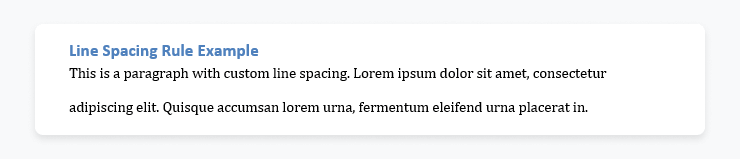
Set line spacing
python
from docx import Document
from docx.enum.text import WD_LINE_SPACING

doc = Document()
paragraph = doc.add_paragraph("This is a paragraph with custom line spacing.")
paragraph_format = paragraph.paragraph_format
paragraph_format.line_spacing_rule = WD_LINE_SPACING.DOUBLE
doc.save("line_spacing_rule_paragraph.docx")
Embed charts
Charts are essential in reports and analytics documents.
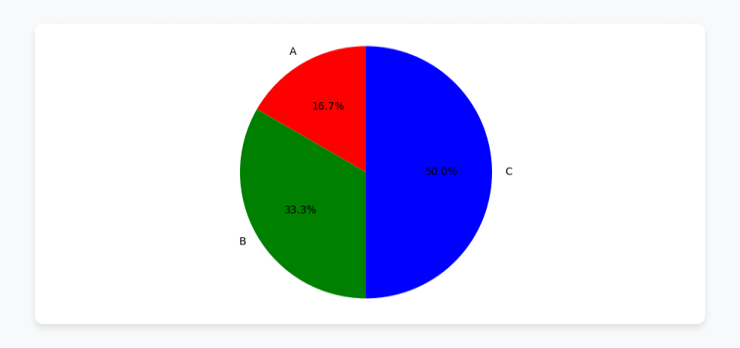
Method 1: Embed an image of a chartGenerate the chart with matplotlib (or similar) and insert the image:
python
import matplotlib.pyplot as plt
from docx import Document
import docx.shared

# Define the values for the PieChart
labels = ["A", "B", "C"]
sizes = [10, 20, 30]
colors = ['red', 'green', 'blue']

# Create a pie chart using matplotlib
fig, ax = plt.subplots()
ax.pie(sizes, labels=labels, colors=colors, autopct='%1.1f%%', startangle=90)
plt.axis('equal')

# Save the pie chart as an image
image_path = 'chart_image.png'
plt.savefig(image_path)
plt.close()

# Create a new Word document
doc = Document()

# Insert the image of the chart into the Word document
doc.add_picture(image_path, width=docx.shared.Inches(5), height=docx.shared.Inches(4))

# Save the Word document
docx_path = "embedded_chart.docx"
doc.save(docx_path)
 Method 2: Embed an interactive chart object
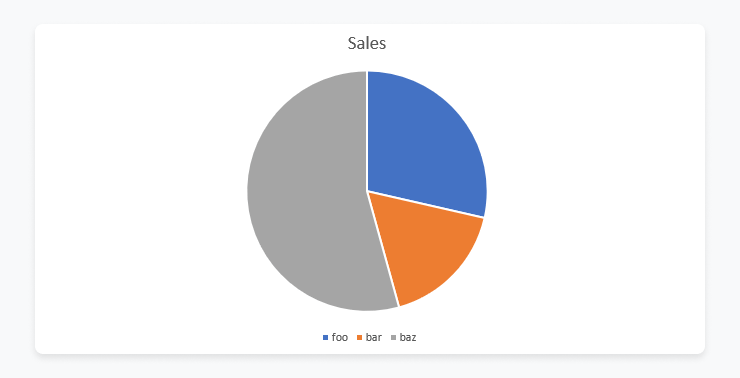
This involves manipulating the docx zip structure, embedded Excel, and chart XML—more complex but delivers native Word charts. See the original approach using openpyxl, BeautifulSoup, and zipfile for details.
Extract information
Extracting text, tables, and metadata from existing documents is key for processing incoming files, data migration, or feeding information into other systems.
python
from docx import Document

def read_text(filename):
    doc = Document(filename)
    full_text = []
    for paragraph in doc.paragraphs:
        full_text.append(paragraph.text)
    return '\n'.join(full_text)

print(read_text('test.docx'))
PRO TIP: Extracted content can fuel further automation: summarization, trend analysis with pandas, sentiment visualization, or integration into search/NLP pipelines.
Convert Word documents
Converting generated .docx files to other formats is often the final step in document workflows—especially when delivering final outputs to clients, regulators, or archival systems.
Example 1:Convert Word documents to PDF documents
python
from docx2pdf import convert

# Convert a single Word document to PDF
convert("example.docx")

# Convert all Word documents in a directory to PDF
convert("my_docs_folder/")
Example 2:Convert Word documents to HTML
python
import mammoth

with open("example.docx", "rb") as docx_file:
    result = mammoth.convert_to_html(docx_file)
    html = result.value

with open("example.html", "w") as html_file:
    html_file.write(html)
Example 3:Convert Word documents to plain text
python
import docx

doc = docx.Document("example.docx")
full_text = [paragraph.text for paragraph in doc.paragraphs]
text = "\n".join(full_text)

with open("example.txt", "w") as text_file:
    text_file.write(text)
Production Word-to-PDF conversion in Linux/cloud environmentsThe docx2pdf approach works well on Windows desktops but is unsuitable for headless Linux servers or containerized cloud deployments. For production environments, LibreOffice in headless mode provides a robust, zero-license-cost solution:
python
import subprocess
import os

def docx_to_pdf(docx_path: str, pdf_path: str = None):
    """Convert .docx to PDF using LibreOffice headless (ideal for Linux/cloud)."""
    if pdf_path is None:
        pdf_path = os.path.splitext(docx_path)[0] + ".pdf"

    subprocess.run([
        "libreoffice",
        "--headless",
        "--convert-to", "pdf",
        "--outdir", os.path.dirname(pdf_path) or ".",
        docx_path
    ], check=True, capture_output=True)

    return pdf_path

# Usage example
# docx_to_pdf("generated_contract.docx")
For ultra-high scale or managed infrastructure, consider cloud document conversion APIs as an alternative.
PRO TIP: When converting to HTML or other web formats, always validate the output and handle complex formatting manually where needed.
Production considerations
When moving Word automation from scripts to production systems, several practical concerns arise:
tempfile module or context managers to create and automatically clean up temporary .docx files, preventing disk bloat in long-running services.
- Concurrent document generation: Implement worker queues (e.g., Celery or RQ) and consider process isolation to safely handle multiple simultaneous renderings.
- Cloud storage integration: Stream generated documents directly to AWS S3 (using boto3) instead of local disk for better scalability and durability.
- Robust error handling: Wrap template rendering and conversions in try/except blocks; validate input data and provide detailed logging for malformed templates or missing context variables.
- Monitoring and performance: Track generation times and error rates, and optimize for batch processing when dealing with high daily volumes.
Word document automation with SoftKraft
If you’re looking for a development team to bring your document processing vision to life, we’d love to help. We offer Python outsourcing services that simplify the implementation process, enabling you to achieve business results without the hassle. Our team will guide you in selecting the right Python library, planning development, and building an end-to-end solution that perfectly aligns with your business requirements.

Conclusion
Python offers tremendous flexibility for Microsoft Word automation, but success in production comes from combining powerful libraries with enterprise-grade practices around scalability, error resilience, and integration with existing business systems. Drawing from years of implementing these solutions across ERP, WMS, and compliance workflows, the most effective automations reduce manual effort dramatically while maintaining document quality and auditability. By leveraging templates, dynamic rendering, and reliable conversion pipelines, teams can focus on higher-value activities rather than repetitive document tasks.